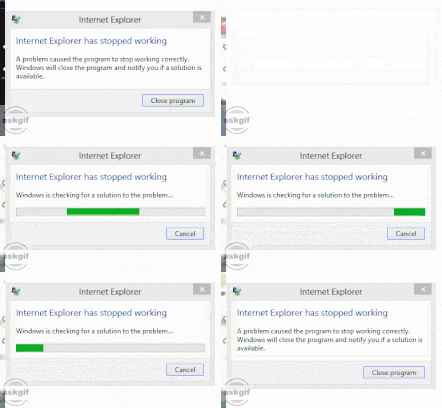
In search for the prime reason you’ll come across the fact that it was caused by some application other than the OS, as Windows rarely corrupts itself. So one should strive hard to isolate the program, startup, or any service which is generating the issue.
It can be done by performing a clean boot as stated below:
- Firstly, all third-party services and items under startup should be disabled using
MSCONFIG and check if the problem goes away.
- A positive result indicates that either it is a service or may be a startup item.
- Now you need to reboot the system again and again enabling half the applications.
Though it is a bit time-consuming, it is worth it, as in the end, it would leave your computer working properly.
Step 2 -- Disable Shell Extensions
If the problem persists even after the clean boot process, then all non-Microsoft shell extensions should be halted. This may be done with the help of a free plug-in from Nirsoft known as ShellExView.
First, execute the program sorting them by the name of the manufacturer, and then items other than from Microsoft should be stopped. Now once again, if the issue is resolved, it means that it was because of any one of the shell extensions, which you may check by enabling them one by one. In order to disable any item, simply click the red button after selecting it.
Step 3 – Updating the Video Driver
In some rare cases, a video driver that is old or might have been infected may also cause this problem. You may simply go to your hardware vendor’s site and download its latest 32 or 64-bit compatible version for Windows.
Step 4 – Selection of Always show icon box
One more solution would be selecting the "Always show icon, never thumbnail" box in the View tab in Windows Explorer, for Windows XP (Tools > Folder Options > View), and for Windows Vista or 7 (Organize > Folder and search options > View).
This step would ensure that your system always shows an icon view of your image and video files instead of a small thumbnail picture. Although it may not appear as a direct solution, possibly your problem may get resolved and no more error message stating “Windows Explorer has stopped working” would come.
Step 5 – Restoring the System
If you are facing the problem after installing some new updates or any new application, then it is recommended that you restore your computer system. System restore can be done by simply typing “system restore” in the start menu. It ensures that your system reaches a better state, a time before the installation was done.
Step 6 – Run the System File Checker command
Although rare, there exists a possibility that this problem might have been caused due to corrupted files. You may resolve it using several tools. To start with, go to the command prompt and run the system file checker command. In order to open the command prompt in admin mode, go to the start menu and type “command prompt,” and then select run it as Administrator. Lastly, type the following command:
sfc /scannow
Method 7 – Repair Install Windows
Another step could be repairing your Windows. For this, go on to the startup repair from the System Recovery Options. All you need to do is press the F8 button while your system is booting. From the list of Advanced Boot Options, select "Repair your computer."
Run the Startup Repair by selecting it. Further, while you are in the recovery option of your system, you may select the command prompt there and try running this command:
chkdsk c: /r