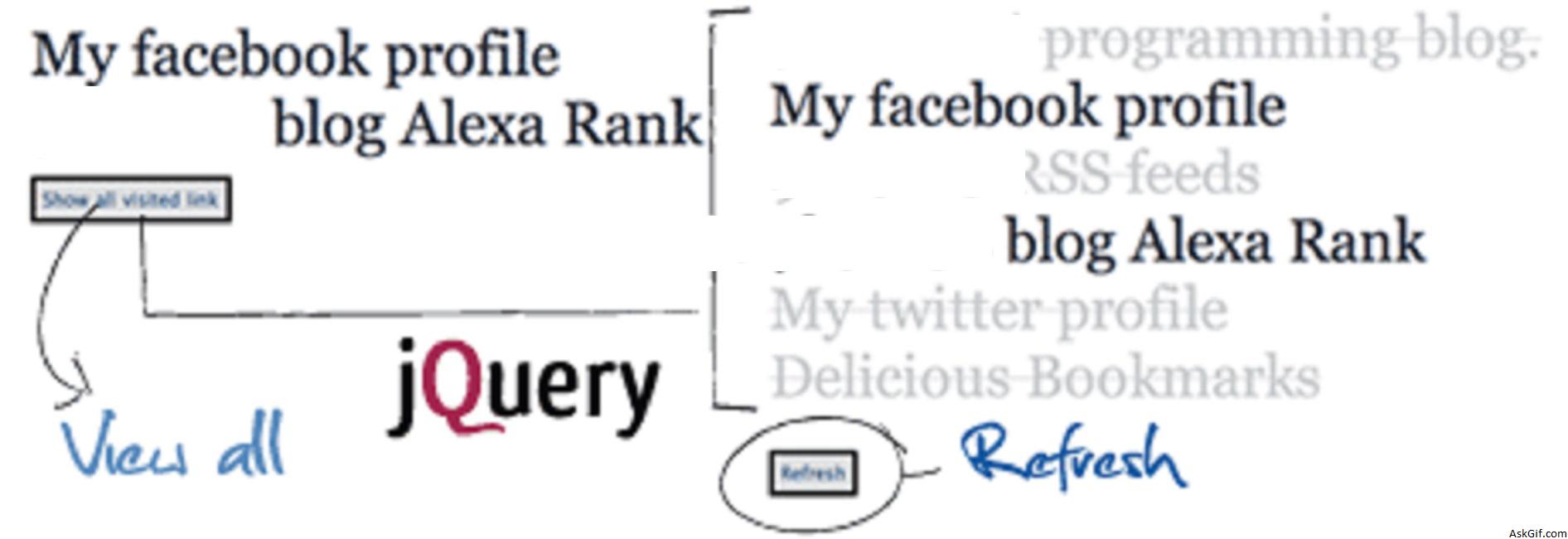
Today am adding jQuery.visited.js plug-in. Visited links hide with jQuery when clicking on show all button it displays already visited links list in slide effect.
This Plugin is useful in displaying the links which are already visited by the users.
Javascript code
Contains jQuery code calling visited function.
<script type="text/javascript" src="jquery.js"></script>
<script type="text/javascript" src="jquery.visited.js"></script>
<script type="text/javascript" >
$(function ()
{
$('#links a').visited(function () {
$(this).parent().hide();
});

$('#show').click(function () {
$('#links a').visited(function () {
$(this).parent().slideDown(200);
});
$(this).fadeOut();
$("#refresh").fadeIn();
return false;
});
});
</script>
HTML Code.
Here refresh button style="display:none"
<div id="links">
<ul class="block">
<li><a href="link-1">Title 1.</a></li>
<li><a href="link-2">Title 2.</a></li>
<li><a href="link-3">Title 3.</a></li>
.
.
.
</ul>
</div>
<a href="#" id="show">Show all visited link</a>
<a href="#" style="display:none" id="refresh"> Refresh </a>