Docker is a set of platform-as-a-service (PaaS) products that use OS-level virtualization to deliver software in packages called containers. Containers are isolated from one another and bundle their own software, libraries and configuration files; they can communicate with each other through well-defined channels.[6] All containers are run by a single operating-system kernel and are thus more lightweight than virtual machines.
The service has both free and premium tiers. The software that hosts the containers is called Docker Engine. It was first started in 2013 and is developed by Docker, Inc.
Lesson Objectives
Understanding where images come from
Pulling a Docker image from Docker Hub
Pushing a Docker image to Docker Hub
Getting an image from Docker Hub
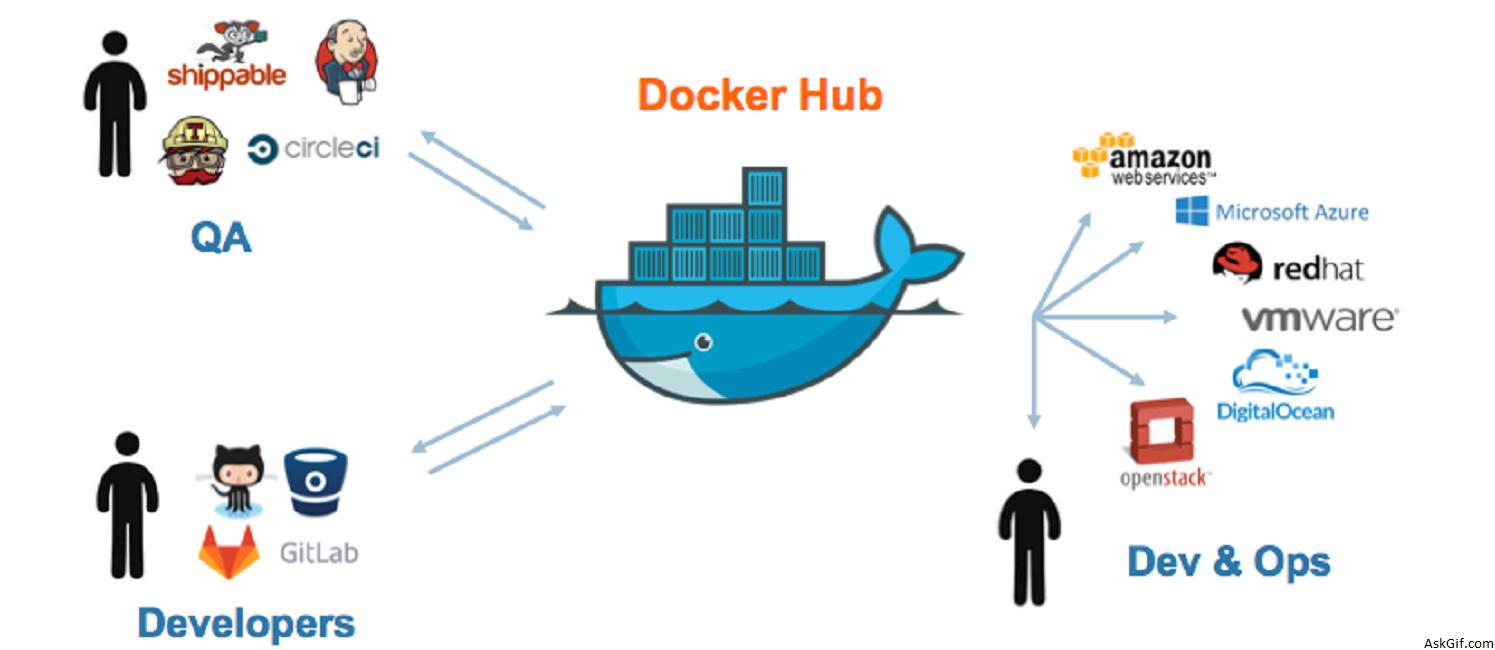
Docker Hub is the place where open Docker images are stored. When we ran our first image by typing
docker run --rm -p 8787:8787 rocker/versethe software first checked if this image is available on your computer and since it wasn’t it downloaded the image from Docker Hub. So getting an image from Docker Hub works sort of automatically. If you just want to pull the image but not run it, you can also do
docker pull rocker/verseGetting an image to Docker Hub
Imagine you made your own Docker image and would like to share it with the world you can sign up for an account on https://hub.docker.com/. After verifying your email you are ready to go and upload your first docker image.
Log in on https://hub.docker.com/
Click on Create Repository.
Choose a name (e.g. verse_gapminder) and a description for your repository and click Create.
Log in to the Docker Hub from the command line
docker login --username=yourhubusername --email=youremail@company.comjust with your own user name and email that you used for the account. Enter your password when prompted. If everything worked you will get a message similar to
WARNING: login credentials saved in /home/username/.docker/config.json
Login Succeeded
Check the image ID using
docker imagesand what you will see will be similar to
REPOSITORY TAG IMAGE ID CREATED SIZE
verse_gapminder_gsl latest 023ab91c6291 3 minutes ago 1.975 GB
verse_gapminder latest bb38976d03cf 13 minutes ago 1.955 GB
rocker/verse latest 0168d115f220 3 days ago 1.954 GB
and tag your image
docker tag bb38976d03cf yourhubusername/verse_gapminder:firsttryThe number must match the image ID and :firsttry is the tag. In general, a good choice for a tag is something that will help you understand what this container should be used in conjunction with, or what it represents. If this container contains the analysis for a paper, consider using that paper’s DOI or journal-issued serial number; if it’s meant for use with a particular version of a code or data version control repo, that’s a good choice too - whatever will help you understand what this particular image is intended for.
Push your image to the repository you created
docker push yourhubusername/verse_gapminderYour image is now available for everyone to use.
Saving and loading images
Pushing to Docker Hub is great, but it does have some disadvantages:
Bandwidth - many ISPs have much lower upload bandwidth than download bandwidth.
Unless you’re paying extra for the private repositories, pushing equals publishing.
When working on some clusters, each time you launch a job that uses a Docker container it pulls the container from Docker Hub, and if you are running many jobs, this can be really slow.
Solutions to these problems can be to save the Docker container locally as a tar archive, and then you can easily load that to an image when needed.
To save a Docker image after you have pulled, committed or built it you use the docker save command. For example, let's save a local copy of the verse_gapminder docker image we made:
docker save verse_gapminder > verse_gapminder.tarIf we want to load that Docker container from the archived tar file in the future, we can use the docker load command:
docker load --input verse_gapminder.tar