How to mount a VirtualBox shared folder?
💻 coding

How to mount a VirtualBox shared folder?

1 min read 133 words
1 min read
ShareWhatsAppPost on X
  • 1To mount a VirtualBox shared folder, first add your share directory in the VM Box with a specific name.
  • 2Create a directory in the guest OS, preferably in your home directory, to use for the mount.
  • 3Use the command 'sudo mount -t vboxsf [share_name] ~/share/' to mount the shared folder for file transfer.

AI-generated summary · May not capture all nuances

Key Insight
AskGif

"To mount a VirtualBox shared folder, first add your share directory in the VM Box with a specific name."

How to mount a VirtualBox shared folder?

To be able to mount a VirtualBox shared folder between your windows and Linux machine you need to do the following steps.

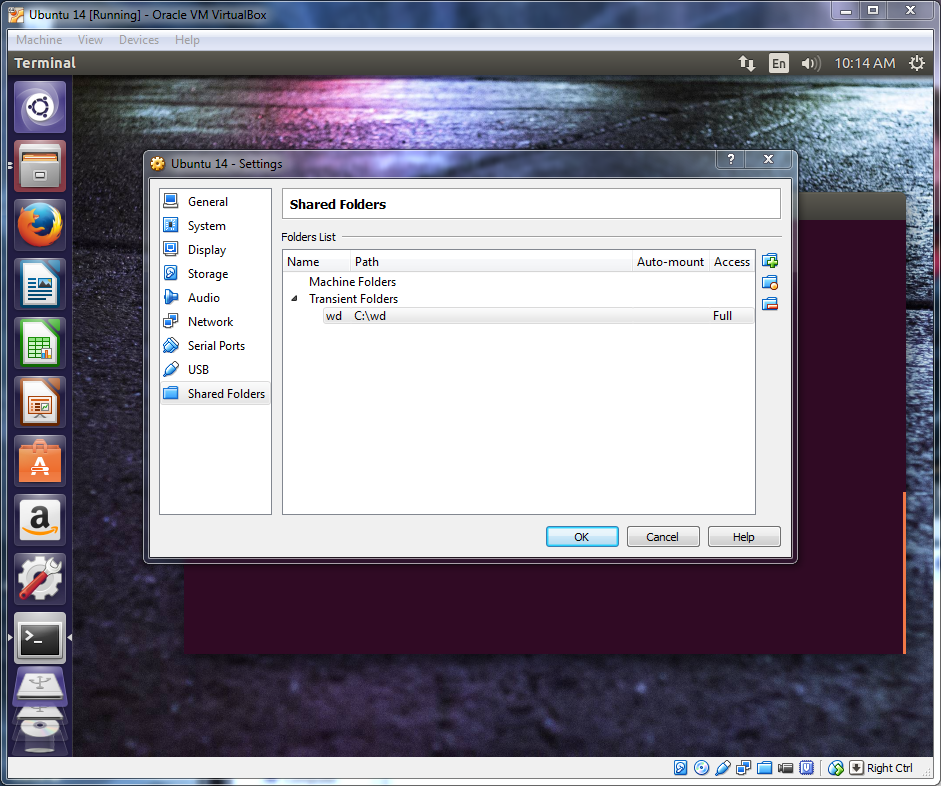
First add your share directory in the VM Box:

Whatever you name your share here will be the name you will need to use when mounting in the vm guest OS. i.e. I named mine "wd" for my western digital passport drive.

Next on the the guset OS make a directory to use for your mount preferably in your home directory.

mkdir share

Next open the terminal and copy and paste the following or type it in. You can enable shared clipboard under Device-> Shared Clipboard-> Bidirectional

sudo mount -t vboxsf wd ~/share/

You should now be able to copy files between OS's using the folder "share" in your home directory

Enjoyed this article?

Share it with someone who'd find it useful.

ShareWhatsAppPost on X

AskGif

Published on 22 November 2018 · 1 min read · 133 words

Part of AskGif Blog · coding

You might also like

How to mount a VirtualBox shared folder? | AskGif Blog